
Creating Custom Markets
In Peer+, markets are the foundation of how credit unions understand opportunity and competition. Markets define the geographic lens for your dashboards, maps, and reports, helping you focus on where your members live, where growth is happening, and where competitive pressure is increasing.
Using the Market Builder, you can define markets that reflect how your credit union actually thinks about its footprint. Build markets around your branch network, expansion areas, underserved communities, or specific counties and tracts tied to lending strategy. Once created, your market powers insights across HMDA activity, branch and deposit data, banking deserts, and more through pre-built dashboards designed to support real credit union decisions
To learn more about how markets come to life in analysis, see: Peer+: Your Guide To Strategic Market Analysis
Quick Navigation
Types of Markets
Institution-Based Markets: Select an individual credit unions or banks to analyze their presence and performance.
- Use this when: you want to understand competitive strength, peer behavior, or how specific lenders are performing in your market.
Peer Pointer!
Double-click on an institution in your comparison set to let Peer+ automatically create a market based on its branch locations.
You can also use the Find My Branches button below the map in the market build to create a market based on your Primary's branches.

Pre-built State and National Market: Quickly analyze standard state or national geographies without setup.
- Use this when: you need a fast benchmark for board or leadership conversations, or when starting high-level market exploration.
Custom Markets: Create tailored markets based on branch footprints, counties, tracts, or other groupings
- Use this when: your strategy depends on precise geographies, such as branch rationalization, expansion planning, or identifying underserved areas.
Creating A Custom Market
Accessing the Market Builder
|
Click the plus (+) sign in the upper right corner of your screen
|
Use the link at the bottom of the market tab within the comparison search. |
|
|
|


Selecting Your Footprint:

- Click on the state to select the entire state and unlock additional selection options
- As you zoom in, counties and tracts appear automatically so you can refine your market incrementally
- When you reach tract-level detail, individual tracts are outlined in orange
Peer Pointer!
If you want to prevent selection below the county level, use the Disable Tracts button to lock your map view at the county level.

Understanding Selection Colors
Color indicators help you understand how much of an area is included based on your current zoom level.
- Green indicates the full area is selected at your current zoom level
- Orange indicates the area is partially selected
Because selection depends on zoom level, you may see colors change as you move the map.
For example:
- Selecting an entire county at the county level shades it green
- Zooming out to the state view with only one county selected will show the state in orange
Other Build Methods
Upload a List: If you have a list of county or tract identifiers (FIPS Codes) that you'd like to use to create your market, you can upload that directly within the market builder.

County Search: You can also make a selection by using the searchable county dropdown in the upper left corner of the builder.

Peer Pointer!
Counties marked with an asterisk (*) meet NCUA's Investment Area Criteria, helping you quickly identify underserved areas for strategic or compliance analysis.
Market Builder Data Tables
Reviewing & Saving Your Market
Overview Table
To the right side of the map, the Market Builder provides an overview of key data points related to demographics and home ownership. This can help you make sure you are on the right track with your market composition.

Market Preview Summary Table
Click on the Show Preview button at the bottom of your map for deeper exploration into the market details. There you'll find expandable menus showing you your market's breakdown to help you assess the market composition before finalizing.
Demographic Summary Table

Home Ownership Summary Table

Want to learn more about a specific area from the Preview Summary Table? Use the zoom to area button in the builder to make adjustments.

Peer Pointer!
Right-click on either of these tables within the builder to export or copy this raw data to Excel.

Please note this will be an unformatted report.
Name & Save YourMarket
Once saved, your market will be automatically added to your comparison set.

Quick Edit: Double-click on a market in your comparison set to make changes.
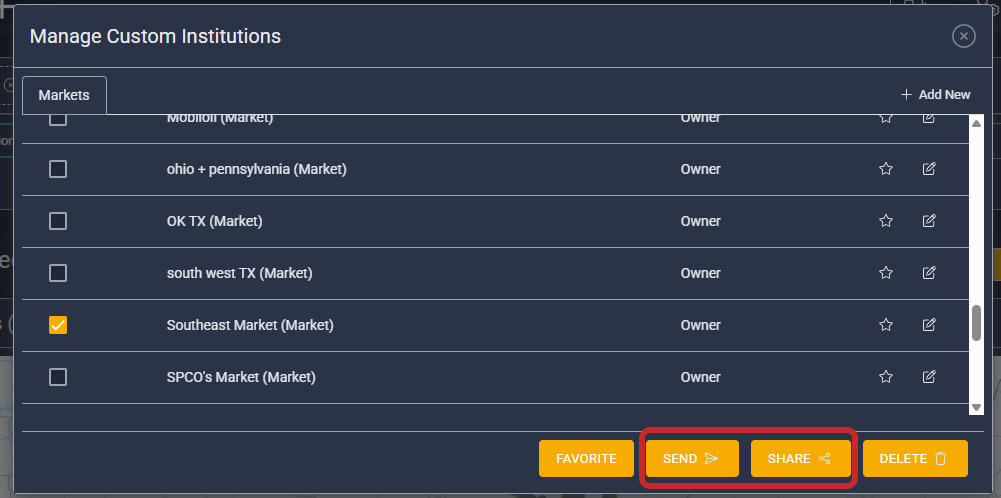
Edit & Share Your Custom Markets

To manage or share your custom markets:
- Click the user icon in the upper-right corner of your screen
- Select Manage Custom Institutions
From here, you can:
- Edit existing markets
- Delete markets you no longer need
-
Share markets with colleagues for consistent analysis
Next Steps: Put Your Market to Work
Once your market is saved, it becomes part of your comparison set and flows through Peer+ dashboards, maps, and reports. From there, you can explore lending trends, competitive positioning, and community-level opportunity with confidence that your geography is defined the right way.
Learn how to view your newly created custom market on Peer+'s interactive maps and more: