
Peer Suite's Express Level: Supplier Quick Start Guide
With supplier access to Peer Suite's Express level, you can:
- Identify high‑potential prospects and expansion opportunities
- Support sales and account planning with data‑backed context
- Spot financial and operational signals that inform outreach timing and messaging
Together, these tools help you support sales strategy, territory planning, and informed client conversations.
Quick Navigation
The Who of Your Analysis: Your Comparison Set
Your comparison set defines which credit unions you are analyzing and benchmarking against one another. A well‑defined comparison set helps ensure your insights support practical sales and strategy decisions, not just individual data points
When you log in, Peer Suite provides a ready‑to‑use starting point with:
- A primary institution selected for reference
- A built‑in peer group based on asset size
This allows you to begin exploring trends and comparisons immediately, without additional setup.
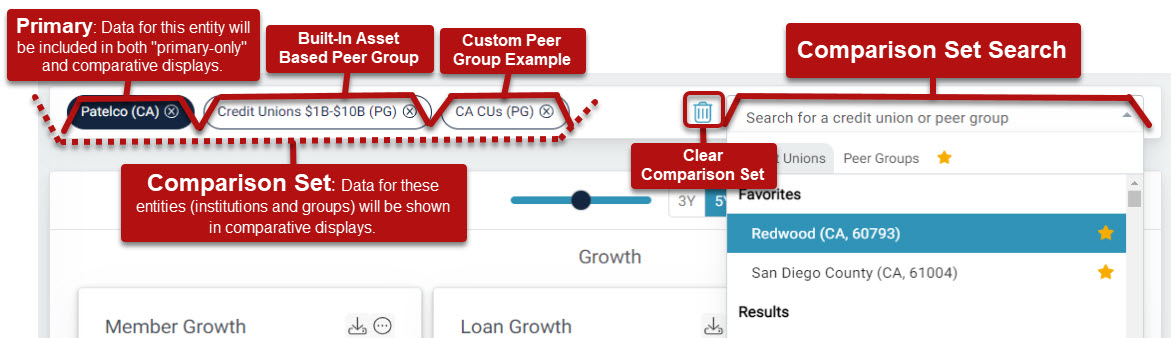
Key terms:
- Primary: Your main point of reference. This institution appears in both primary‑only and comparative views and can be adjusted at any time.
- Comparison Set: The other credit unions or peer groups you are analyzing alongside your primary institution. These can be built‑in or custom.
You can:
- Add institutions using the Comparison Search
- Remove institutions by selecting the X next to an institution’s name
With a Premium or Plus subscription, users can also analyze banks and model hypothetical mergers. Reach out to your account manager to learn more.
Learn more in this guide: "The Who" of your Analysis: Your Comparison Set
Custom Peer Groups
Custom peer groups allow you to segment the credit union landscape in ways that support territory planning, prospect targeting, and strategic outreach.
You might use custom peer groups to:
- Focus on credit unions that match your ideal customer profile
- Compare existing clients against similar non‑clients
- Support regional, product‑specific, or campaign‑driven sales strategies
How to Get Started

- Open the Create dropdown in the top navigation
- Choose Select by Criteria
- Apply filters that align with your strategy or focus
Options include:
- State or regional geography
- A selection of performance metrics
- Charter type
- Core processor
- The ability to include or exclude specific institutions

Step‑by‑step guidance is available here: Creating a Criteria-Based Peer Group.
Some advanced peer‑group features are only available with a Premium or Peer+ subscription. If you have questions about expanding peer‑group capabilities, your account manager can help.
The What of Your Analysis: Built‑In Content
Use the left navigation to explore built‑in reports and dashboards tied to the institutions in your comparison set. These views are designed to surface trends, outliers, and peer context quickly, without additional configuration.

Profile Reports
The Profile Reports section provides quick, at‑a‑glance views of individual credit unions and their performance context. These reports are especially useful for:
- Preparing for sales calls or discovery conversations
- Getting oriented before an intro meeting or renewal discussion
- Identifying strengths, pressures, or recent shifts that may influence buying decisions

Express Dashboards
Express Dashboards help you understand:
|
|

Built‑in analysis explains why a metric matters and how performance compares across peers.
Each dashboard display includes:
- Clear ratio definitions
- Callahan performance or AI‑powered analysis
- Star rankings for fast comparison across institutions
|
|
|


Learn more here: Unique Features of Peer Dashboards.
Display Modifications
Display controls allow you to tailor views for presentations, internal discussions, or quick analysis checks.

Use the toolbar to:
- Adjust the trend length
- Add or remove data labels
- Show or hide institution names in titles
- Reset displays to default settings
- Access additional display options
Peer Pointer!
During FirstLook, Callahan’s early data program, you will also use toolbar settings to view early data. FirstLook data is marked with an asterisk(*) in the dropdown menu.

Learn about these modifications and more in our Peer Suite's Toolbar & Display Modification Guide.
Download and Automate Your Findings
Download Your Findings
Use the download menu in the top‑right corner of the canvas to export reports and visuals for presentations, briefings, or internal sharing.

Peer Pointer!

Automating Reports
Automation is useful when sharing consistent updates with your team.

To schedule automated delivery:
- Select Email from the More Options menu
- Choose to send immediately or schedule a recurring delivery
- Recurring reports are sent quarterly following official NCUA data releases
Step‑by‑step instructions are available here: How to Send and Schedule Automated Reports
Step‑by‑step instructions are available here: How to Send and Schedule Automated Reports.